> For the complete documentation index, see [llms.txt](https://docs.siit.io/llms.txt). Markdown versions of documentation pages are available by appending `.md` to page URLs; this page is available as [Markdown](https://docs.siit.io/core-plateform/integrations/email.md).
# Email
Employees submit requests by emailing your team address, like it\@acme.siit.io, and reply to any Siit update to add details. Every message lands on the request timeline
### Submit requests via email
#### How it works
**Your team's email address:**\
If your organization is Acme and you want to submit a request to your IT team, simply send an email to:
```
[team-name]@acme.siit.io
```
For example: `it@acme.siit.io` or `hr@acme.siit.io`
**What happens next:**
1. Your email is received by Siit
2. A new request is automatically created
3. You receive a confirmation with your request details
4. The appropriate team is notified and can start working on your request
Learn [how to submit requests via email](https://help.siit.io/email-request)
***
### Add information to existing requests
Need to provide more details, ask a follow-up question, or just let the team know they're doing an awesome job? Simply reply to any email update you receive from Siit.
#### Reply to updates
When you reply to a Siit email notification:
* Your message is automatically added to the request thread
* The assigned team members are notified
* All context is preserved in one place
* No need to log into any platform
***
### Configure email sending
Siit offers two options for sending emails on behalf of your company domain. Each has its own benefits and considerations.
#### Option 1: Individual email address verification
**Best for:** Quick setup, small teams, or testing
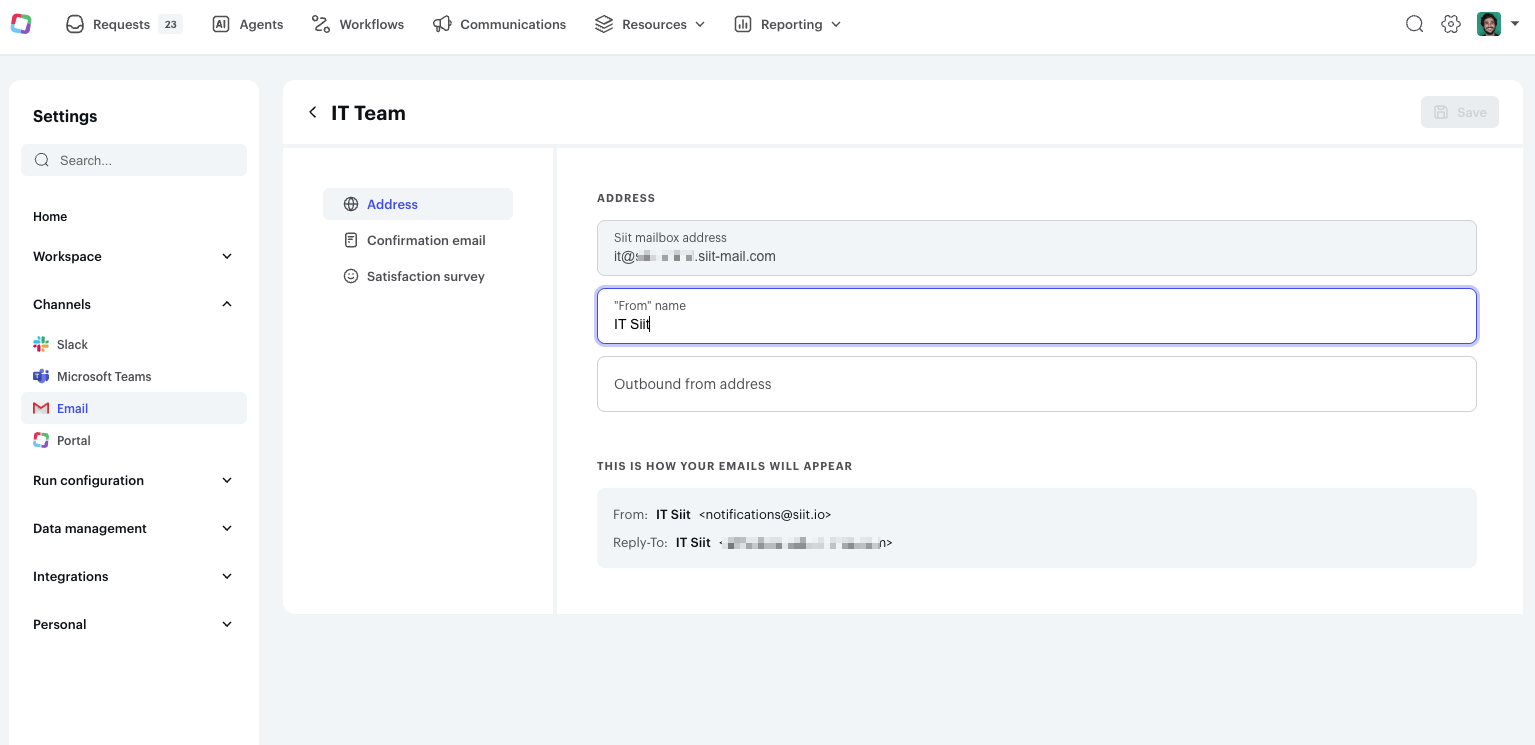
Personalize both the "From" name and email address with this simple implementation:
**Setup steps:**
1. **Provide information:** Enter your desired "From" name and email address in Siit's Email settings
2. **Verify your address:** You'll receive a verification email from Postmark
3. **Confirm:** Follow the verification steps in the email to confirm your address
4. **Start sending:** Once verified, Siit can send emails from your address
**✅ Benefits:**
* ⚡ Quick and easy setup
* No DNS configuration required
* Perfect for individual users or small teams
**⚠️ Considerations:**
* Each sending email address needs individual verification
* May affect email deliverability compared to domain authentication
* Recipients might see "via postmarkapp.com" tags in Gmail
* Outlook may show "on behalf of" indicators
***
#### Option 2: Fully-authenticated domain (Recommended)
**Best for:** Organizations prioritizing deliverability, brand consistency, and professional appearance
Authenticate your entire company domain for a fully-branded, secure email experience.
**Setup steps:**
**1. DNS Record Setup**
Add specific DNS entries to your domain configuration to verify ownership. You'll need to add these records (provided by your Siit CSM):
* **DKIM record:** Authenticates that emails are genuinely from your domain
* **Return-Path record:** Improves deliverability and tracking
* **Custom tracking domain (optional):** For branded link tracking
**2. Reach out for approval**
Contact your Siit Customer Success Manager to approve and activate the domain once DNS records are configured.
**3. Verification**
Siit will verify your DNS setup and confirm when your domain is ready to use.
**✅ Benefits:**
* 🚀 **Superior deliverability:** DMARC alignment and domain reputation
* 🎯 **Professional appearance:** No "via" or "on behalf of" tags
* 🔒 **Enhanced security:** Full SPF, DKIM, and DMARC authentication
* 📊 **Better analytics:** Complete visibility into email performance
* ✨ **Consistent branding:** All emails appear directly from your domain
**⚠️ Considerations:**
* Requires DNS configuration access
* Initial setup takes longer than individual verification
* Needs coordination with IT or domain administrator