> For the complete documentation index, see [llms.txt](https://docs.siit.io/llms.txt). Markdown versions of documentation pages are available by appending `.md` to page URLs; this page is available as [Markdown](https://docs.siit.io/core-plateform/integrations/slack.md).
# Slack
Connecting Slack to Siit enables powerful & automated help desk functionality, and seamless request management directly from your Slack workspace.
Run your service desk inside Slack. Capture, triage, and resolve requests in-thread, with AI deflection, two-way sync, and full context attached, so your team handles every ask without leaving the conversation.
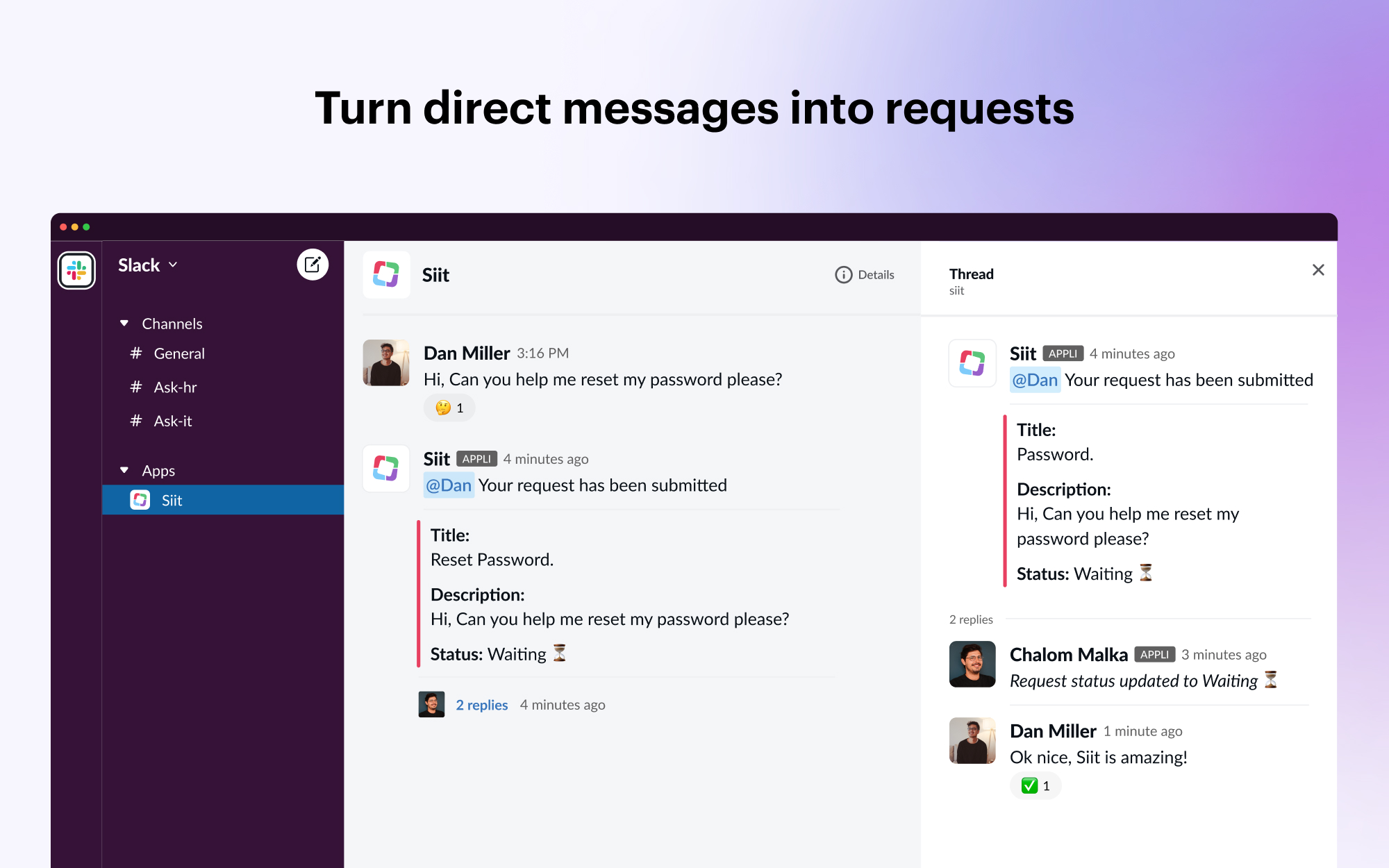
Siit allows you to submit and manage service requests directly in Slack. Siit's native Slack integration keeps everyone informed on status without ever having to leave Slack.
### Submit a new request
Employees can create requests in multiple ways:
⭐️ **Mention @Siit in a public channel**\
Tag Siit in any public channel to create a request that's visible to the team.
⭐️ **Write a DM to Siit**\
Send a private message to Siit to create a confidential request.
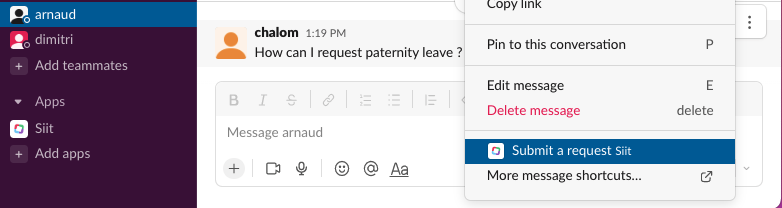
⭐️ **Use Slack actions**\
Right-click any message in a private channel or DM and select "Create a ticket" from the actions menu.
[Learn how to submit requests in Slack →](https://help.siit.io/slack-requests)
***
### Stay up-to-date about your requests
Siit keeps you informed with automatic updates:
* **Thread notifications**: Receive updates about status changes, assignments, and resolutions directly in your request thread
* **Status overview**: Click on the request title to see the full status and details at any time
* **Real-time sync**: All updates from admins are instantly reflected in Slack
***
### AI Agents: Instant answers from your knowledge base
Siit AI Agents provide instant, accurate answers based on your existing documentation from Notion or Confluence—no waiting required.
#### How it works
When employees ask questions in Slack:
1. Siit AI searches your connected knowledge bases
2. Generates contextual answers with source references
3. Delivers responses in seconds, directly in the thread
{% embed url="" %}
***
### Turn any message into a ticket
Need to convert a conversation into a tracked request? Admins can easily transform any Slack message into a Siit ticket:
* **From public channels**: Right-click any message and select "Create ticket from message"
* **From DMs**: Convert employee questions into trackable requests with full context preserved
* **Automatic linking**: The original message thread stays connected to the ticket
***
### Private notes for internal collaboration
Admins can add private notes to requests that only other admins can see, perfect for:
* Internal discussions about resolution strategies
* Sensitive information that shouldn't be shared with requesters
* Coordination between team members
Use the 🔒 emoji in the admin notification thread to create a private note.
**Learn more about how to** [Give functionality to Slack emojis](https://help.siit.io/slack-emoji-actions)
***
### Getting started
Ready to connect Slack to Siit?
{% content-ref url="/pages/3DBkm0PqS2BmkJMziY4P" %}
[Connect Slack](/getting-started/connect-slack.md)
{% endcontent-ref %}